It’s been brought to attention that we need to be including the shipper and commodity on our e-logs. Below are instructions on how to accomplish this in Geotab Drive.
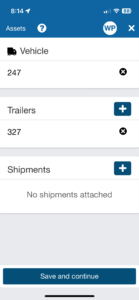
First login and select your vehicle, after you select your vehicle a page will show up where you add your trailer and there is a section labeled “Shipments”.
Another way to access the page is to click on the your vehicle number from the “Dashboard” tab if you are already logged in.
1. Click the “+” next to Shipments.
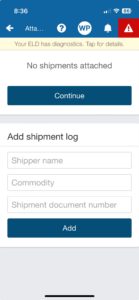
2. On the next screen you will see areas to fill in “shipper name” and “commodity” both of these fields need to be filled out, whether it’s a piece of equipment or aggregate, or anything being hauled. “Shipment document number” is not required, see images below.
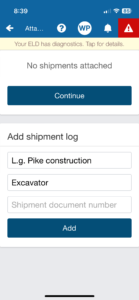
3. Once they are filled in click “Add”, and then “continue” it will bring you to the screen below, you can click “Save and continue”.
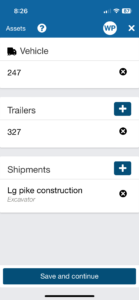
4. After that you can verify logs, and do vehicle/trailer inspections as usual.